Client Preview: Creating & Managing Links
This page covers staging gems, capturing their images, generating a shareable link, and managing the links you've already sent.
Staging gems
Client Preview links are built in the Client Preview tray, opened from the actions menu in the Developer editor (its button shows a small badge with the number of gems currently staged). You can stage up to four gems per link.
With a design open, click + Add current gem to add it to the tray. Each staged gem gets a card where you can type a name, plus a short description, shape, and price. Repeat for each stone you want on the page; the + Add current gem button disables once four are staged.
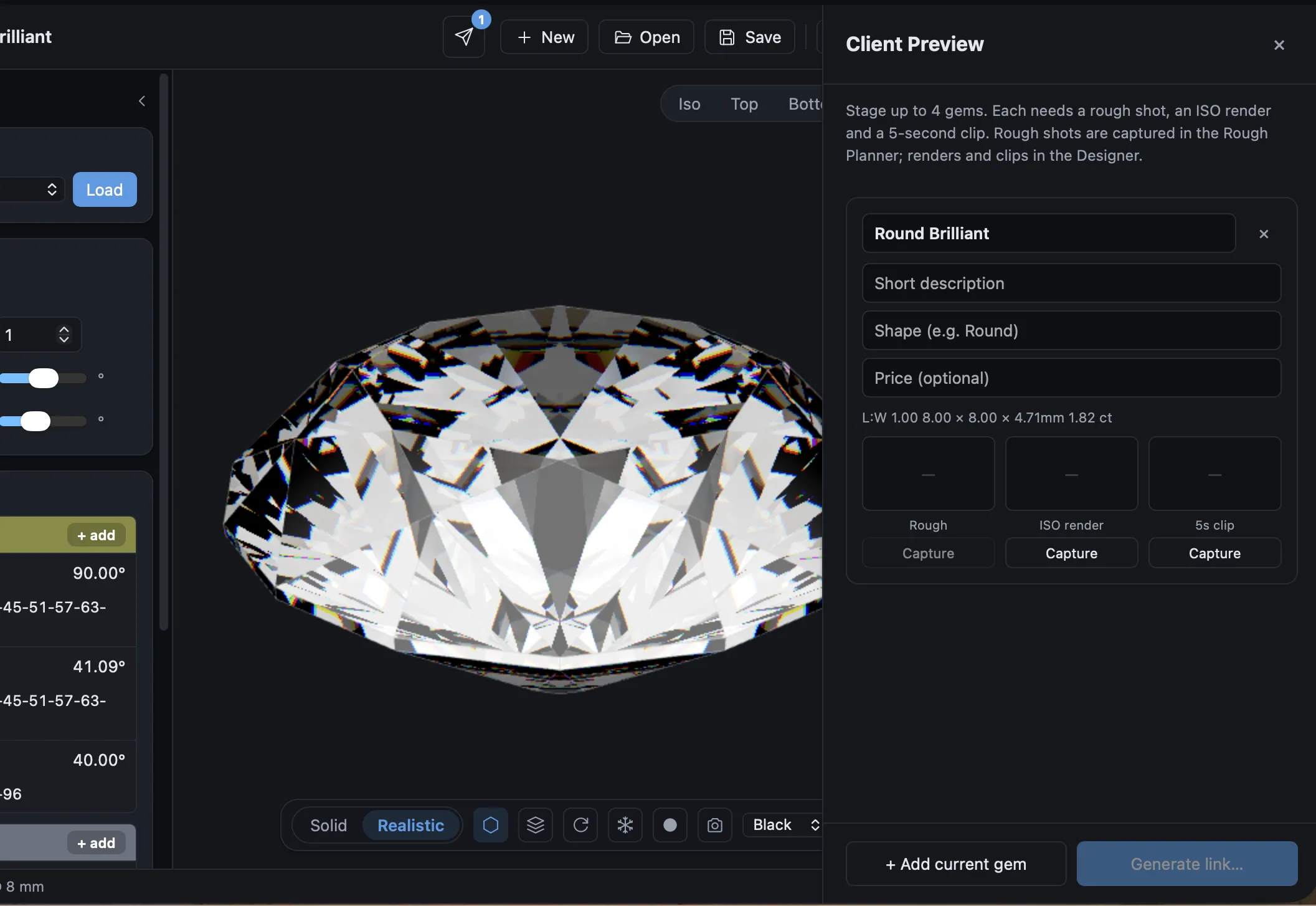
Capturing the three views
Each gem needs three captures before it can go in a link:
- Rough — a shot of the rough stone.
- ISO render — a rendered still of the finished gem.
- 5-second clip — a short animation.
Each slot has a Capture button (it becomes Recapture once filled). Some captures are taken in the Developer editor and some in the Rough Planner; if a capture needs a different tool, the tray hands your open gem over to that page and brings you back — the design travels with you, so you don't lose your place.
Tip
The Generate link… button stays disabled until every staged gem has all three captures. If it won't activate, one of the slots is still empty.
Generating the link
When every gem is complete, click Generate link…. You'll set a few details for this link:
- A client label so you can tell your links apart later.
- An optional message shown to the recipient (up to 500 characters).
- The brand name to display (defaults to your saved branding).
- An optional expiry: 30, 60, or 90 days, or no expiry.
Generating produces the link, which you can copy and send.
Note
New links are created as drafts and count toward your active total. There's a limit on how many links you can generate in a short window, so create them as you're ready to send rather than in one large batch.
Managing links in the dashboard
Your account dashboard has a Client Preview tab listing every link you've made. Each row shows its label, how many gems it holds, when it was created, and its status — Active, Expired, or an upcoming expiry date — with View, Copy, and Delete actions.
The tab also shows your quota, written as "N of M used." Pro accounts can keep up to 500 active links at once. "Active" counts links that are live or still in draft; deleting a link frees a slot immediately.
To change the branding or default theme these links use, see Branding & Theme.