Faceting Workflow: Angle, Index Wheel & Cut Distance
Every design in Gem Diagram — from the built-in presets to a stone you build facet by facet — is described with the same four ideas: tiers, angle, the index wheel, and cut distance. Once these click, the tier editor in the Developer stops looking like a spreadsheet and starts looking like the stone.
Tiers: the building blocks
A tier is a ring of facets that share one angle and one distance, repeated around the stone at a set of index positions. A design is just a list of tiers — the Round Brilliant preset is seven of them: a girdle, two pavilion tiers (mains and breaks), two crown tiers (mains and breaks), a star tier, and the table.
Each tier belongs to one of three groups:
| Group | Sits | Typical role |
|---|---|---|
| Crown | above the girdle | the facets you see looking down into the stone |
| Pavilion | below the girdle | the facets that bounce light back up through the table |
| Girdle | the stone's widest edge | the thin band crown and pavilion meet at |
Note
The girdle is a tier like any other — it has an angle (always 90°, straight up and down) and its own index positions. It isn't a special case in the data model, just a ring with a flat profile.
Angle
Angle is how steeply a tier's facets tilt, measured in degrees from the girdle plane. A girdle facet runs straight up-and-down at 90°. From there:
- Pavilion angles count down from the girdle toward the culet — the Round Brilliant's pavilion mains sit at 41°, its breaks at 42°.
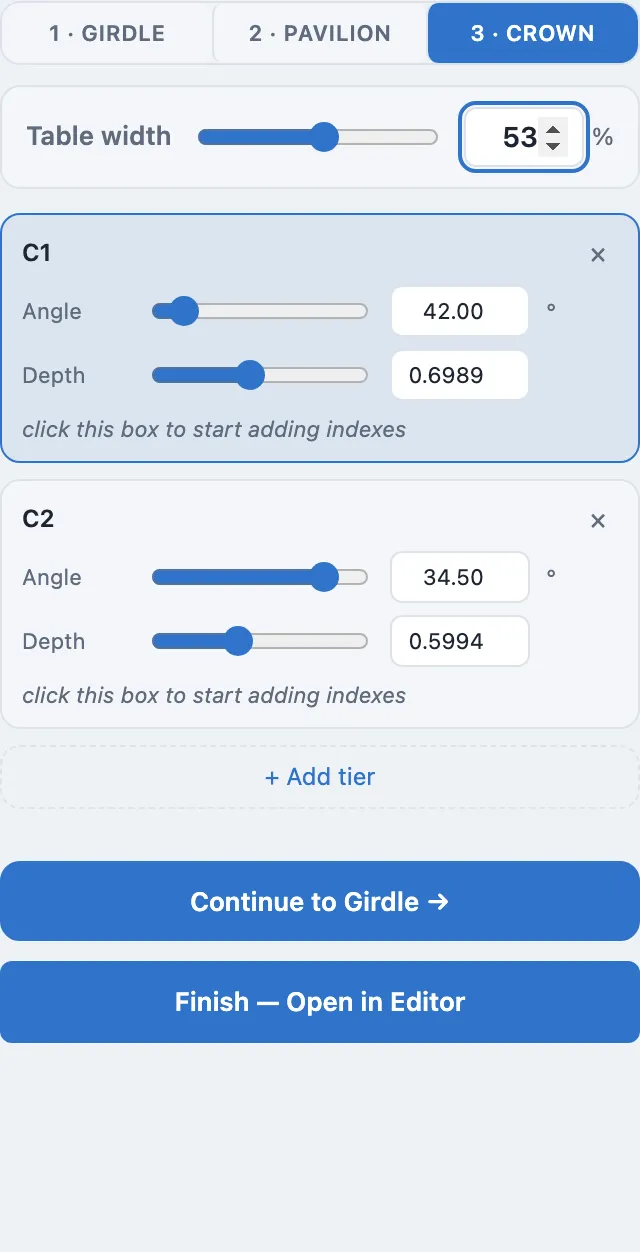
- Crown angles count down from the girdle toward the table — crown mains at 34.5°, breaks at 42°, the shallow star facets at just 20°.
Tip
Steeper pavilion angles push the critical-angle reflection point closer to the table, which is what makes a well-cut pavilion return light instead of leaking it out the bottom. The Developer's live 3D preview is the fastest way to feel this — drag an angle slider and watch the brilliance shift in real time.
The index wheel
We'll focus on the 96-index wheel in this section. Every design sits on a wheel of 96 equally spaced positions (0–95) running around the stone — think of it as a protractor with 96 teeth instead of 360 degrees. A tier doesn't need to use all 96: it lists just the index positions its facets occupy, and those positions repeat at whatever spacing gives the stone its symmetry.
The Round Brilliant's pavilion mains, for example, use 8 evenly spaced positions (0, 12, 24, 36, 48, 60, 72, 84) — one every 12 teeth, for 8-fold symmetry. Its breaks use 16 positions spaced 6 teeth apart, interleaved between the mains. More positions on a tier means more, smaller facets sharing that angle and distance.
Note
The Symmetry panel generates these index lists for you from a fold count (how many repeats) and an optional mirror — you rarely type index numbers by hand outside the manual tier editor.
Cut distance
Distance is how far a tier's facet plane sits from the stone's center, measured along the facet's own normal — not a separate width or height value, but the two combined into one number.
A larger distance pushes that tier's facets outward; the geometry engine
uses angle and distance together to place every facet plane, then intersects
neighboring planes to find the actual facet edges. You'll see distance as
a field in the tier editor.
Warning
Distance isn't something you usually hand-enter. Nudge angle and let auto-distance keep the facet anchored at the girdle edge — typing a distance value that doesn't match its tier's angle can pull a facet plane away from its neighbors and open a gap in the stone.
The table
The table is the flat facet at the very top of the crown — in the data model it's just another tier, with angle 0° and a single index. Its size is set as Table %: the table's width as a fraction of the girdle's full width, shown as 0–100%. The Developer's default is 56% — small enough to leave plenty of crown facets to catch light, wide enough to be a comfortable viewing window into the stone.
Putting it together
Open any preset in the Developer and read its tiers top to bottom: girdle at 90°, pavilion tiers stepping down toward the culet, crown tiers stepping down toward the table, the table itself at 0°. That's the whole shape of the stone, described in four numbers per tier — angle, index positions, distance, and which side of the girdle it's on.