Gem Showcase
Gem Showcase arranges your finished stones on a display platform and renders them together at true physical scale — a presentation view for showing a collection rather than editing a single design.
What it is
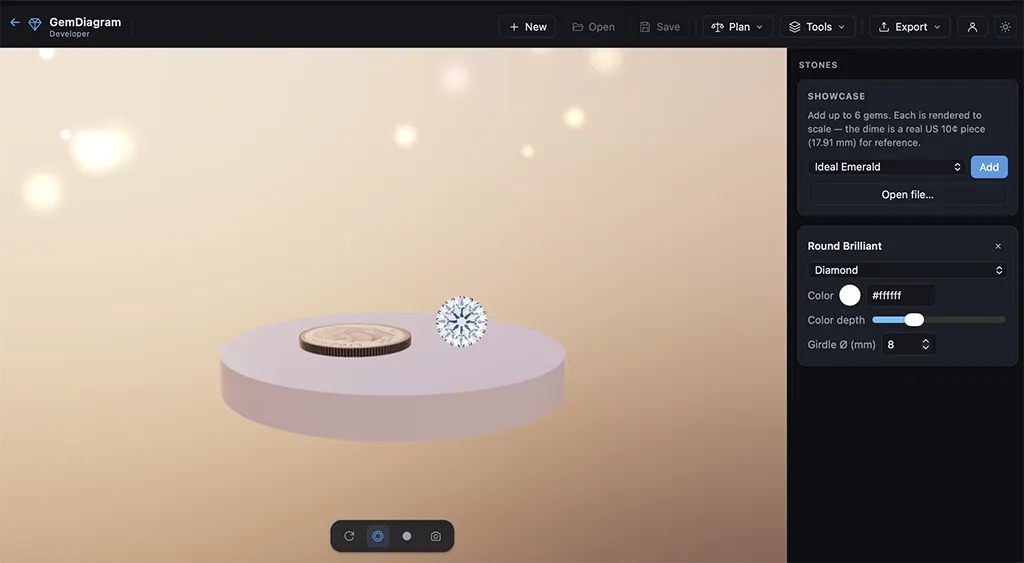
Showcase places up to six gems on a round pedestal in a photographic interior scene. Each gem is ray-traced for realistic color and fire, and everything is sized to real-world millimeters, so a 6 mm stone next to a 10 mm stone looks the way it actually would in your hand. An optional US dime sits alongside for scale reference (17.91 mm across), the same way a coin gives scale in a real product photo.
Gem Showcase is a Pro feature. See Accounts, Plans & Billing for what each plan includes.
Opening it
Launch Gem Showcase from its tile on your dashboard. If you open it straight from the Developer editor, the design you had open comes along as the first stone on the platform.
Adding and removing gems
Two ways to add a stone:
- Pick a built-in design from the preset dropdown and click Add.
- Click Open file… and load a
.facet,.asc,.gem, or.gcsfile from your computer.
Staged gems appear in the side list; remove one from there. The platform holds six at a time — true to scale, so a lineup reads as a real size comparison, not just thumbnails.
Controls
- Rotate — orbit the camera slowly around the platform for a turntable view.
- Dime — show or hide the reference coin.
- Screenshot — save the current view as an image.
- Record — capture the view to a video clip.
You can also drag to orbit the camera manually at any time.
Tip
Ray-tracing six stones at once is demanding. If the view is slow or stutters, remove a stone or two, or check System Requirements for the hardware Showcase expects.
To share a specific stone with a client rather than display a collection, use Client Preview instead.