Refractive Index & Dispersion
Refractive index and dispersion are the two numbers that decide how a stone actually behaves optically once it's cut — how sharply it bends light, how much colored "fire" it throws, and how steep a pavilion needs to be to avoid windowing. The Material card's stat tiles read them straight off the chosen material.
Refractive index
Refractive index (RI) measures how much a material bends light entering it — higher RI means a steeper bend. It drives the Refractive index stat tile and feeds the Realistic shader's index of refraction directly, so a higher-RI material visibly bends reflections more sharply in the live render.
RI also sets the stone's critical angle — see below — which is the number that actually constrains how you cut the pavilion.
If you're cutting a material that isn't in the built-in list, or you want to model a specific RI exactly, choose Custom from the Material dropdown and enter a value (1.2–3.5). The critical angle and windowing check recompute from whatever RI you type — see Choosing a Material.
Dispersion ("fire")
Dispersion measures how much a material splits white light into its component colors — the flashes of color ("fire") you see in a well-cut diamond or moissanite, as opposed to a low-dispersion stone like quartz or glass, which stays mostly colorless even from facets that throw a lot of light. It feeds the Dispersion stat tile directly. Internally, the visible chromatic spread in the render is scaled up from the true physical value so it's visible at the viewport's scale — the stat tile always shows the real, unscaled number.
Note
Among the built-in materials, Rutile (0.280) and Moissanite (0.104) have the highest dispersion — both noticeably "fierier" than Diamond (0.044) at the same cut. Opal has none (0.000): it has no crystal structure to disperse light through in the first place. The colors you see in an opal come from somewhere else entirely — see Opal's Play of Color.
Critical angle & windowing
The Critical angle stat tile is computed from RI.
This is the steepest angle, measured from straight down, at which light hitting a facet from inside the stone still reflects internally instead of escaping. A pavilion cut shallower than the critical angle leaks light out the bottom instead of bouncing it back up through the table — a defect called windowing (see Faceting Workflow: Angle, Index Wheel & Cut Distance for what "pavilion angle" means in the tier editor).
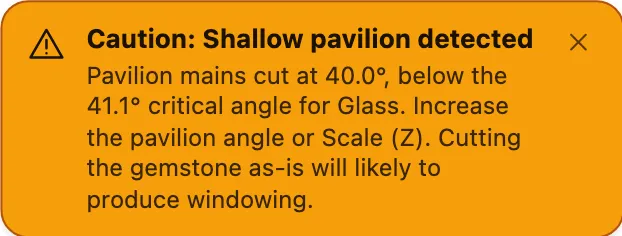
Gem Diagram checks this for you automatically: whenever the pavilion mains' as-cut angle falls below the current material's critical angle, a warning banner appears over the viewport.
Warning
This check only looks at the pavilion mains — the tier the editor identifies as governing how light exits at the culet. A different pavilion tier cut too shallow won't trigger the banner on its own, so don't treat "no warning" as a guarantee that every pavilion facet is steep enough.
The fix is whichever the warning text suggests: increase the pavilion angle, or increase the pavilion's Scale (Z) in the Proportions controls — either one raises the as-cut angle back above the critical angle for the material you've chosen.
Choosing materials by these numbers
The full table of RI, dispersion, and critical angle for every built-in material is in Choosing a Material — useful when you're deciding whether a design cut for one material (say, the default Round Brilliant's Corundum pavilion angles) will still perform well if you switch it to something with a meaningfully different critical angle.